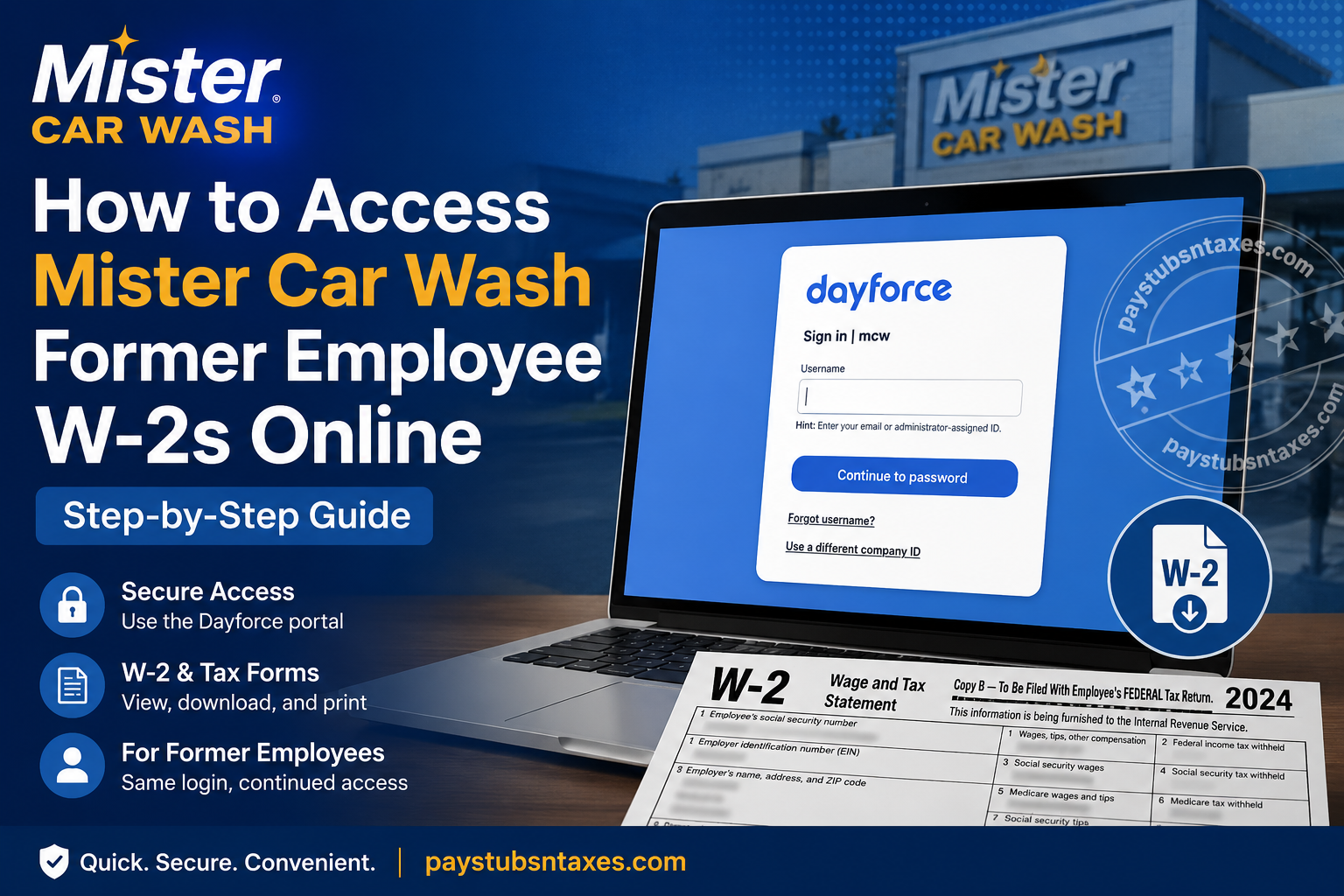
Former Mister Car Wash employees can retrieve their W-2 forms, historical earnings statements, and other available payroll records online through Dayforce, the platform also known to team members as Mister Connect. Leaving the company does not ordinarily close the door on these essential documents: former employees retain access to their Dayforce profiles using the same login credentials they used during employment. Whether you need a W-2 to prepare your tax return, verify prior income, or maintain accurate personal records, the following instructions explain how to access, download, and print your Mister Car Wash tax documents.
Quick Access Information
- Dayforce login: https://www.dayforcehcm.com/mydayforce/login.aspx
- Company ID:
mcw - Dayforce support phone: 1-866-254-3229
- Support email: misterconnect@mistercarwash.com
Can Former Mister Car Wash Employees Access Dayforce?
Yes. Current and former Mister Car Wash team members can continue using Dayforce to view available earnings statements and year-end tax forms, regardless of employment status.
Your existing login information should remain the same after your employment ends. On the Mister Car Wash Dayforce sign-in page, enter the email address or administrator-assigned ID associated with your account. If the wrong organization appears, select Use a different company ID and enter mcw.
Because access to payroll records can become particularly important during tax season, it is prudent to confirm that you can sign in before you urgently need a document. A little preparation now can save a great deal of frustration later.
How to Access Your Mister Car Wash W-2 Online
1. Open the Dayforce login page
Go to the official Dayforce sign-in page.
If Dayforce asks for a company identifier, enter:
Company ID: mcw
Make certain that the sign-in page displays mcw before proceeding.
2. Enter your username
Enter the email address or administrator-assigned username connected to your Mister Car Wash account, and then select Continue to password.
Former employees should ordinarily use the same username and password they used while actively employed. Do not create a new account unless Mister Car Wash support specifically instructs you to do so, as a separate account may not be connected to your historical payroll records.
3. Open the main menu
After signing in, open your employee profile and select the Menu icon—represented by three horizontal lines—in the upper-left corner of the screen.
The precise appearance of Dayforce may vary slightly depending on whether you are using a computer, tablet, or mobile device; nevertheless, the underlying navigation should remain broadly similar.
4. Select Earnings
Choose Earnings from the menu. This section contains the payroll information associated with your Mister Car Wash employment, including available earnings statements and year-end tax records.
5. Open Year-End Forms
Select the Year-End Forms tab. Your available W-2 forms and any other applicable year-end tax documents should appear here.
If you worked for Mister Car Wash across several tax years, review the listed year carefully before opening a form. Selecting the correct year at the outset helps prevent the all-too-common mistake of using an outdated W-2 when preparing a return or responding to an income-verification request.
6. Download or print your W-2
Select the W-2 you need. When the document opens, use the available controls to:
- View the form;
- Download a digital copy; or
- Print a paper copy.
Save the downloaded file on a secure personal device rather than a shared or public computer. Since a W-2 contains sensitive financial and identifying information, it should be handled with the same care as a bank statement or tax return.
When Will Your Mister Car Wash W-2 Be Available?
Year-end tax forms for the preceding calendar year should be available no later than January 31 of the following year. For example, a W-2 covering wages paid during 2026 should be made available no later than January 31, 2027.
A form may appear earlier, but checking repeatedly at the beginning of January can be premature. If the January 31 deadline has passed and your W-2 is still unavailable, contact Mister Connect support for assistance.
What to Do If You Cannot Log In
Login difficulties are inconvenient, but they do not necessarily mean that your former-employee access has been removed. Work through the following checks before contacting support.
Confirm the company ID.
Verify that you are signing in under the company ID mcw. If another organization is displayed, choose Use a different company ID and enter the correct identifier.
Check your username
Use the email address or administrator-assigned ID connected to your Mister Car Wash employment. Enter it carefully, paying particular attention to spelling, punctuation, and unnecessary spaces.
Use the username-recovery option.
If you cannot remember your username, select Forgot username? on the Dayforce sign-in page and follow the prompts.
Review your password entry.
Passwords are case-sensitive. Confirm that Caps Lock is off and that your browser or password manager has not inserted outdated credentials.
Contact Mister Connect support.
If you remain unable to sign in, cannot locate a tax form, or encounter an account-related error, contact the Mister Connect support team:
- Phone: 1-866-254-3229
- Email: misterconnect@mistercarwash.com
When requesting assistance, provide enough information for the team to identify your employment record, such as your full name, former work location, employee ID if known, and approximate employment dates. However, never send your complete Social Security number, password, or an unprotected copy of your W-2 by email.
What If Your W-2 Does Not Appear in Dayforce?
If you can access Dayforce but cannot see the expected W-2, first confirm that you are viewing Earnings > Year End Forms and have selected the correct tax year.
You should also consider whether the form has been released yet. If January 31 has not passed, it may still be undergoing year-end processing. If the deadline has passed—or if other tax years are visible but the required form is missing—contact Mister Connect support and explain precisely which document and tax year you need.
How to Keep Your Tax Documents Secure
Once you have retrieved your W-2, keeping a personal copy is strongly recommended. Although historical forms are expected to remain accessible in Dayforce, maintaining your own secure archive ensures that an account-recovery problem does not catch you on the back foot.
For safer recordkeeping:
- Store the document on a password-protected personal device;
- Use an encrypted cloud-storage account with multifactor authentication;
- Avoid saving tax forms on public, workplace, or shared computers;
- Delete downloaded copies from shared devices and empty the recycle bin;
- Keep printed forms in a locked drawer or filing cabinet; and
- Retain the document for the period recommended by your tax adviser or the relevant tax authority.
About Mister Car Wash
Founded in Houston, Texas, in 1969, Mister Car Wash has grown from a single location into a major nationwide car-wash operator. Headquartered in Tucson, Arizona, Mister Car Wash, Inc. trades on the New York Stock Exchange under the symbol MCW.
The company’s service philosophy is rooted in quality, friendliness, operational excellence, and memorable customer experiences. Its guiding belief—that taking care of employees enables employees to take care of customers—is reflected in its broader commitment to inspiring people to shine.
Dayforce supports this people-centered approach by bringing together human resources, payroll, benefits, workforce management, and talent-related services on one platform. For former employees, its most valuable function is often straightforward yet indispensable: continued access to historical earnings statements and tax documents.
Final Takeaway
Accessing a Mister Car Wash former-employee W-2 online is generally a straightforward process: sign in to Dayforce using company ID mcw, open Earnings, select Year End Forms, and download or print the required document. Once you have obtained your W-2, save a copy in a secure personal location. Although Dayforce provides continued access to available historical payroll records, maintaining your own archive is the safest way to ensure that important tax information remains close at hand whenever you need it.
Mister Car Wash Former Employee W-2 FAQ
1. How do former Mister Car Wash employees access their W-2s?
Former employees can access available W-2s by signing in to Dayforce, opening Earnings, and selecting Year End Forms. The form can then be viewed, downloaded, or printed.
2. What is the Mister Car Wash Dayforce company ID?
The Mister Car Wash company ID is mcw. Enter it in lowercase if Dayforce asks you to identify your former employer.
3. What is the Dayforce login link for Mister Car Wash employees?
The Dayforce login page is https://www.dayforcehcm.com/mydayforce/login.aspx. Confirm that the sign-in screen displays the company ID mcw before entering your password.
4. Can I access Dayforce after leaving Mister Car Wash?
Yes. Former Mister Car Wash employees can continue using their existing Dayforce profiles to access available earnings statements and year-end tax forms after their employment ends.
5. Do I need to create a new Dayforce account after termination?
Normally, no. Continue using the same username and password associated with your Mister Car Wash Dayforce account. Creating another account may result in a profile that is not connected to your historical payroll information.
6. Where is the W-2 located in Dayforce?
After signing in, follow this path: Menu > Earnings > Year End Forms
Select the appropriate tax year, open the W-2, and use the available controls to download or print it.
7. When will Mister Car Wash W-2s be available?
W-2s and other year-end tax forms for the previous calendar year should be available no later than January 31 of the following year. For example, a 2026 W-2 should be available by January 31, 2027.
8. Can former employees view old Mister Car Wash pay stubs?
Yes. Available historical pay statements should remain accessible in the Earnings section of Dayforce, regardless of whether the employee is currently working for Mister Car Wash.
9. What should I do if I forgot my Dayforce username?
Select Forgot username? on the Dayforce sign-in page and follow the recovery instructions. Use the email address or account information associated with your former employment.
10. What should I do if Dayforce shows the wrong company?
Select Use a different company ID, enter mcw, and continue to the Mister Car Wash sign-in page. Entering the correct company ID ensures that Dayforce connects you with the appropriate employer account.
11. Why is my Mister Car Wash W-2 not showing in Dayforce?
Confirm that you opened Earnings > Year End Forms and selected the correct tax year. If January 31 has not passed, the form may still be undergoing year-end processing. Contact Mister Connect support if the deadline has passed and the W-2 remains unavailable.
12. Can I download my Mister Car Wash W-2 to my phone?
Yes. If your mobile browser or Dayforce application provides a download option, you can save the W-2 to your phone. Store it only on a password-protected personal device and avoid leaving unprotected copies in a general downloads folder.
13. Can I print my W-2 directly from Dayforce?
Yes. Open the required W-2 under Year End Forms and select the available print option. Review the print preview first to ensure that the entire form appears correctly.
14. Who should I contact for Mister Car Wash Dayforce assistance?
For assistance with Dayforce or Mister Connect, call 1-866-254-3229 or email misterconnect@mistercarwash.com. Never include your password or complete Social Security number in an email.
15. How should I store a downloaded W-2 securely?
Save the W-2 on a password-protected personal device or in encrypted cloud storage secured with multifactor authentication. Avoid public or shared computers, and keep printed copies in a locked filing cabinet or similarly secure location.
